Lou Adams Studio · Native Mac software
Telescopium
Creative projects, with their context intact.
Telescopium brings projects, tasks, notes, local files, web links and dependency planning into one local workspace on your Mac, built for music and video production.
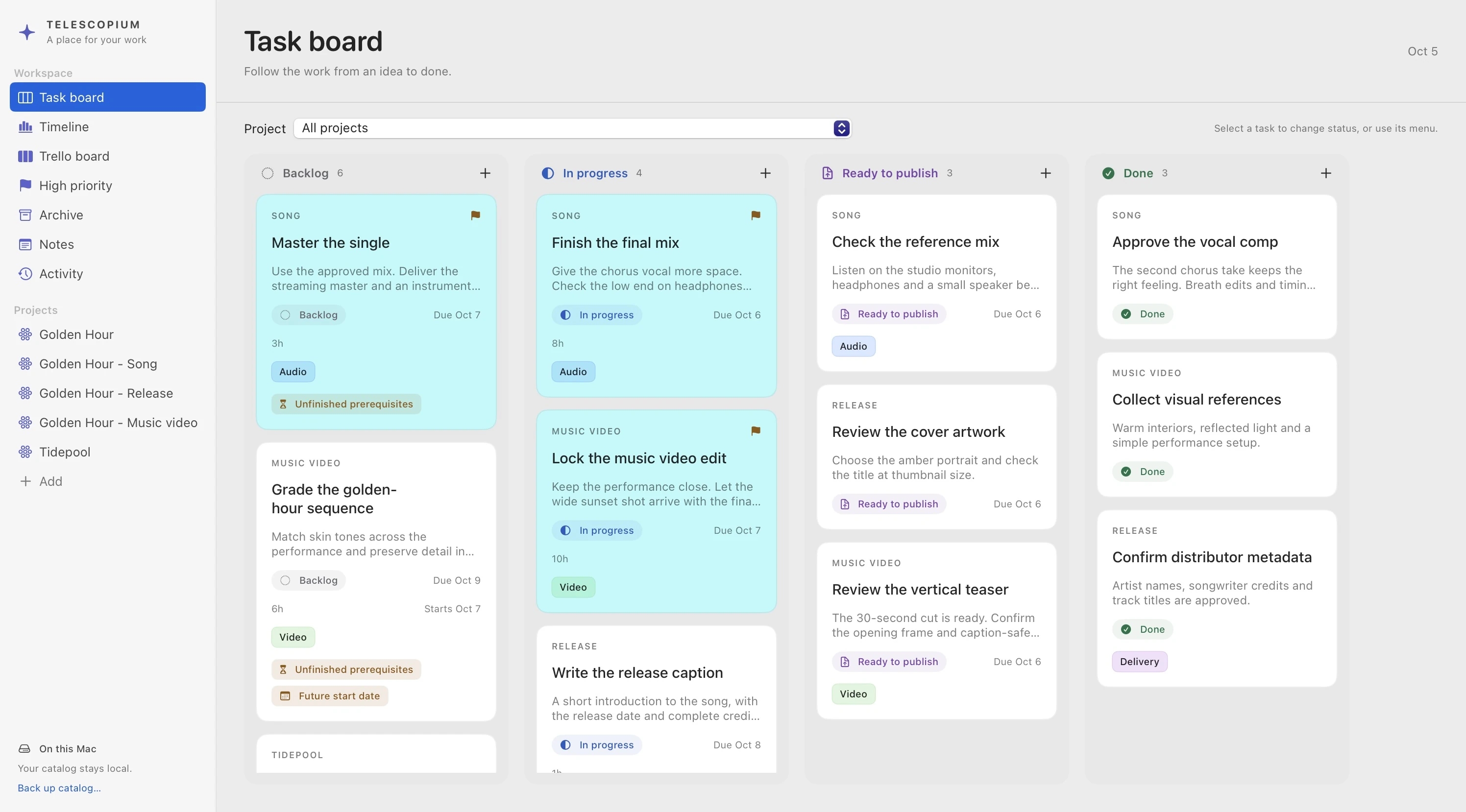
Tasks in one app, notes in another, files somewhere else
You return to a song after a week away. The session is easy to find, but the reason for the last vocal change is buried in a note. The mastering task is on a board. The approved mix is among several exports. The music video is waiting for that mix, yet its deadline lives in a separate plan.
Video productions add camera originals, audio takes, proxies, project files, renders and delivery versions. These can occupy hundreds of gigabytes or more. Existing folders and drives remain central to the workflow, even when planning happens in a browser.
Telescopium addresses the repeated effort of reconstructing those connections: which project a file belongs to, which decision explains a revision, what has to finish before the next task can start, and where to resume work.
One connected workspace
A project is the starting point. Organize a release into Song, Music video and Release subprojects, or build a deeper structure for a larger production. Tasks, notes and file connections belong to that structure, with links available across projects when work overlaps.
- Projects give the work a place.
- Keep a production’s description, subprojects, tasks, notes, web addresses and file connections together. Project filters include descendant projects, so a release can be viewed as a whole or one part at a time.
- Tasks describe what needs to happen.
- Use workflow status, priority, optional start and due dates, optional duration estimates, tags and checklists. Connect prerequisites and see the tasks that depend on the current one.
- Notes preserve the reason behind a decision.
- Keep production briefs, listening notes and edit decisions as records in their own right. Link the same note to relevant work, read it in context and return through the details panel’s Back control.
- File connections point to the materials.
- Attach references to existing files or folders. Give them descriptive labels and roles such as Source, Working or Final, then open them or reveal them in Finder from the associated project or task.
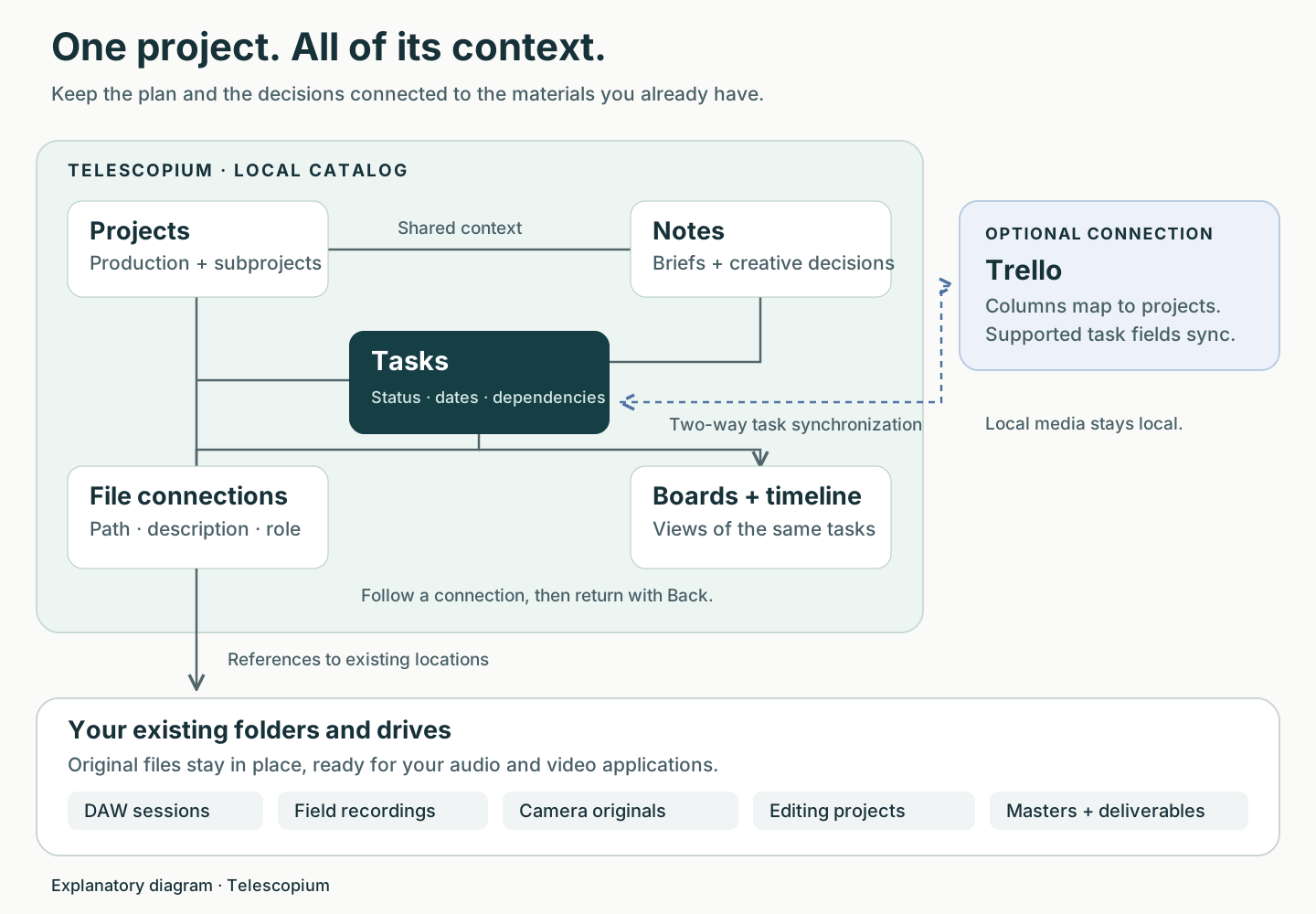
Keep large media in the folders you already use
A multitrack recording or 4K production already has a physical organization: sessions, source recordings, camera originals, working exports and final deliverables. Telescopium stores the relationships around those materials in a local catalog. Adding a file connection leaves the original file in place.
For an audio task, link the Logic Pro session, the reference recordings and the mix export folder. For a picture edit, connect the editing project, the source footage folder and the delivery directory. A friendly description can explain a connection without renaming the file itself.
This makes the catalog lightweight relative to the media it describes. You can plan and record decisions without importing every audio take or video render into the app, or uploading the production’s media to organize its tasks.
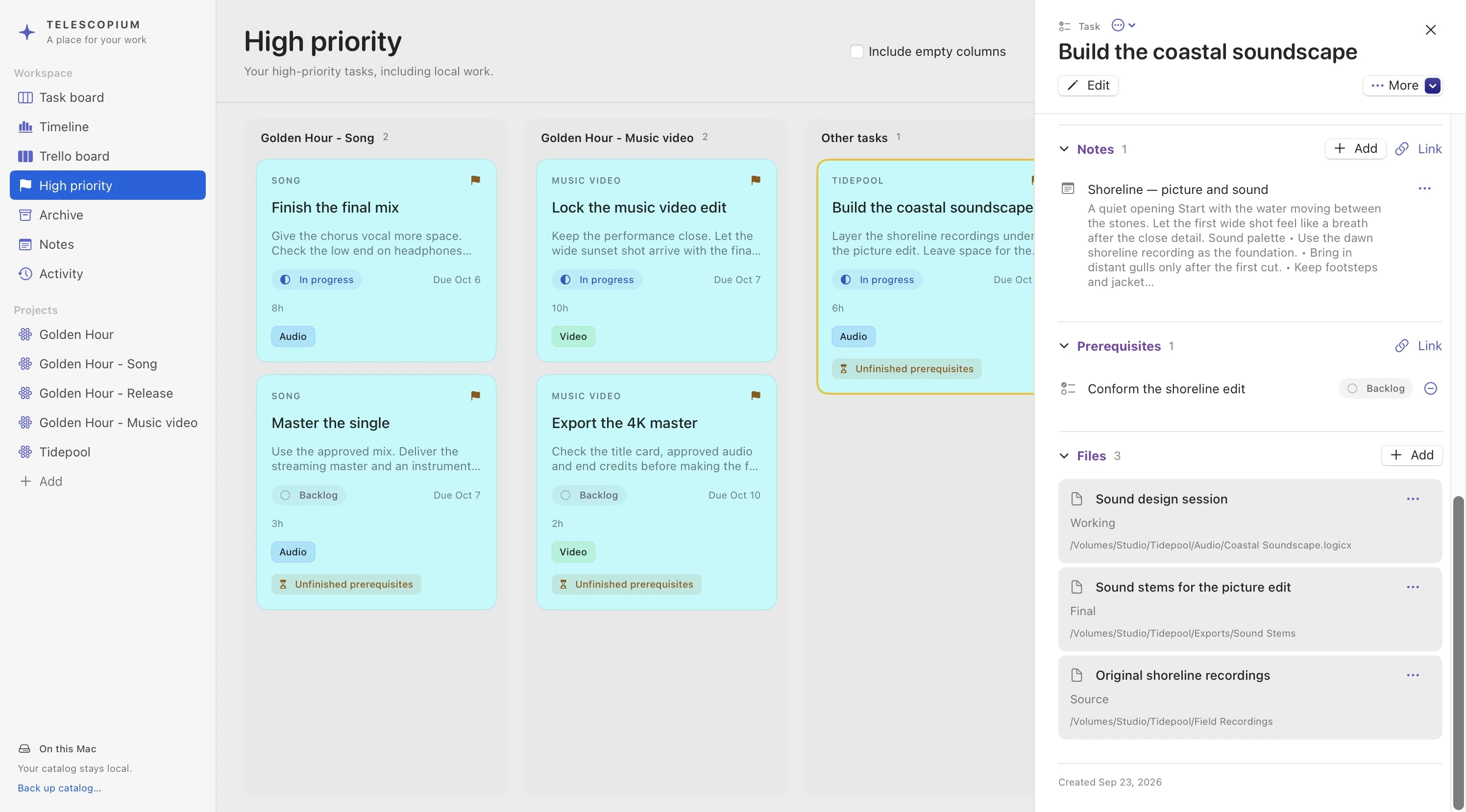
Removing a file link never touches the file itself. Files on a disconnected drive open again once the drive is back.
Follow a production from recording to release
Consider Golden Hour, the fictional single and music video shown here. Its recording, film and release materials share one project hierarchy.
- Establish the production. Create the main project and its Song, Music video and Release subprojects. Add the brief and connect the relevant production folders.
- Capture the next piece of work. Add “Finish the final mix,” attach the session and link the listening note. Small checks belong in its checklist; substantial work such as mastering becomes a separate task.
- Make the handoffs explicit. Mastering depends on the mix. The video export depends on the picture grade and the audio master. Release delivery depends on the finished outputs.
- Choose the view that helps today. Use the task board for workflow status, a project to focus on one production, High priority for the urgent tasks, or the timeline to examine the order of work.
- Return to the decision, then the session. Open a connected note, use Back to return to the task, and open the associated file when it is time to continue in the creative application.
- Retain the context after delivery. Mark completed work Done and archive tasks when they can leave the active workspace. Archive is independent of completion, so postponing work does not imply that it was finished.
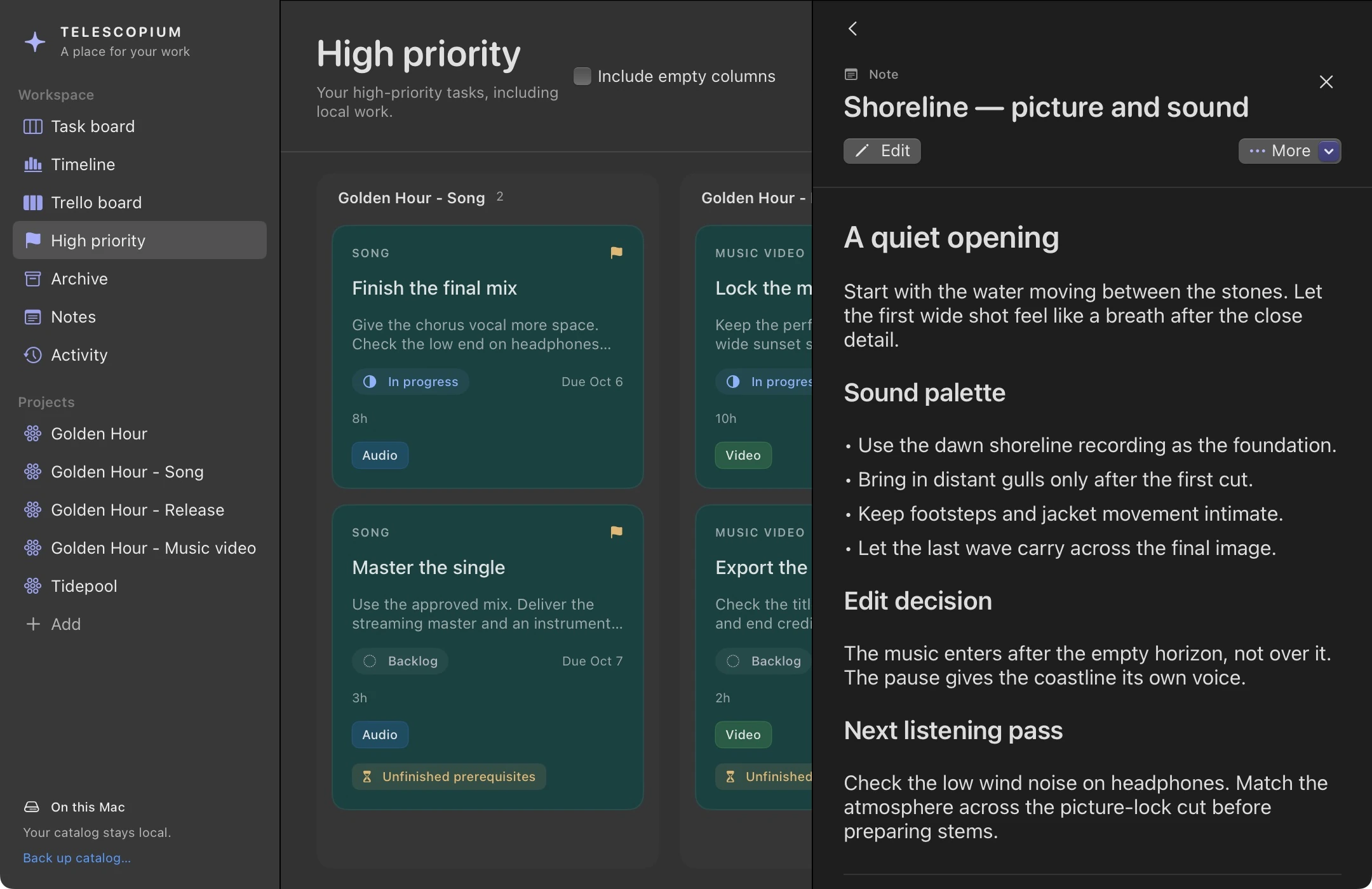
Different views of the same work
The boards and timeline share the same tasks. A priority change, completed prerequisite or new note becomes part of that task’s context wherever you open it.
| View | What it helps you see |
|---|---|
| Task board | Work moving through Backlog, In progress, Ready to publish and Done, with an optional project filter. |
| Project | The tasks, notes, files and connected objects associated with one production or subproject. |
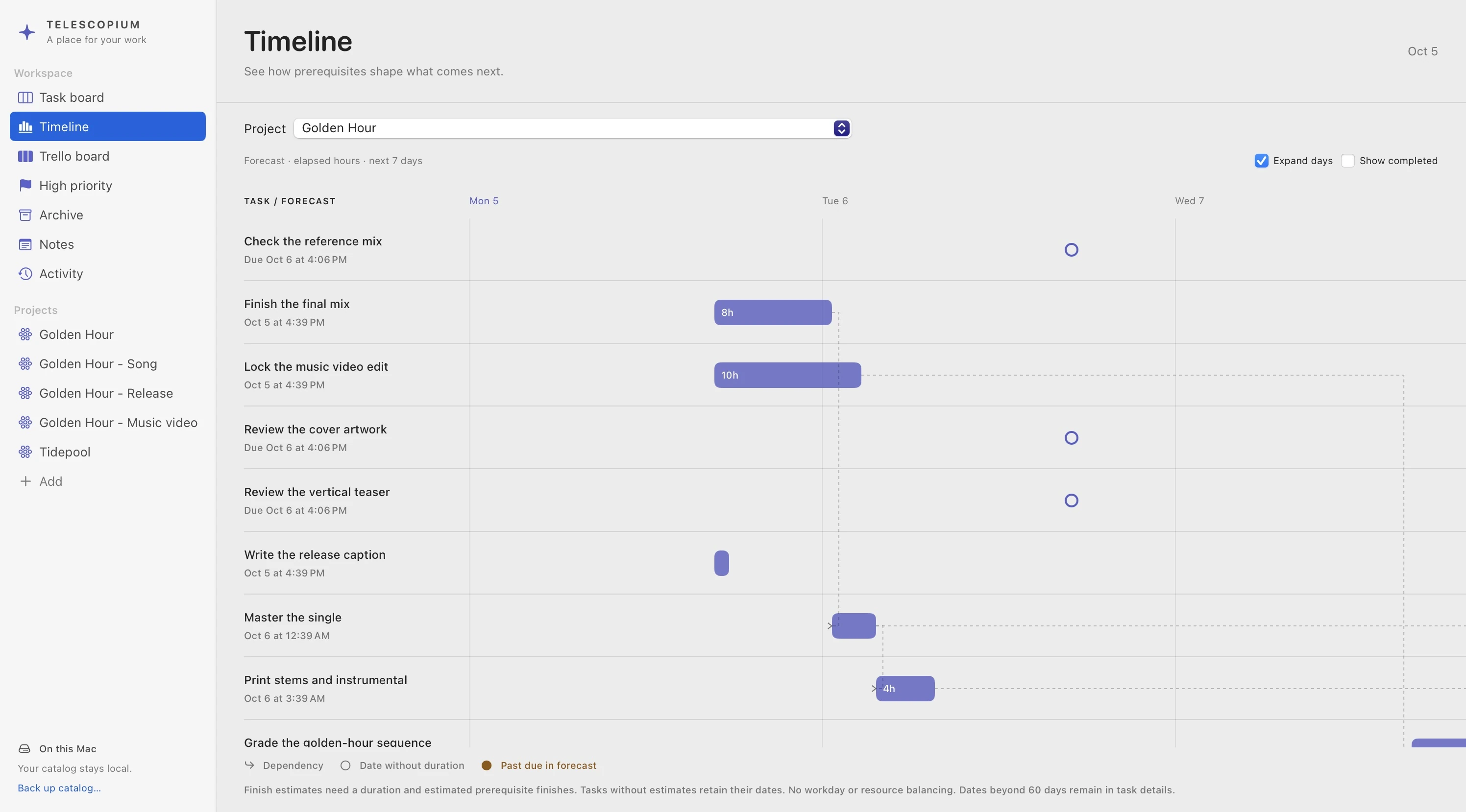
| Timeline | Dates, optional duration-based forecasts and prerequisite connections, scoped to a project when needed. |
| Trello board | The connected board’s column and card order, using Telescopium’s own task cards and details panel. |
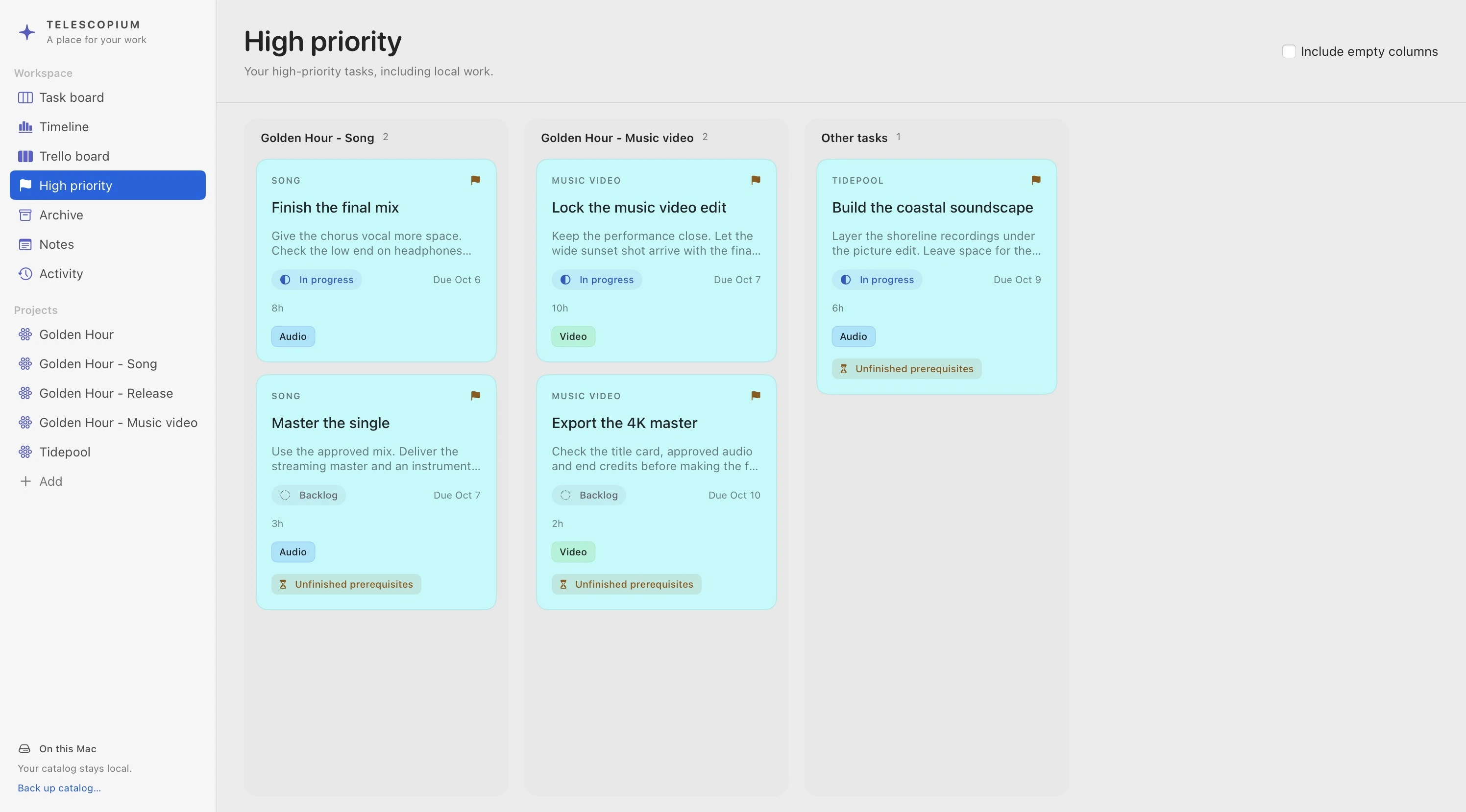
| High priority | Active tasks marked High, grouped into their Trello columns with local or unmapped work in Other tasks. |
| Archive | Tasks retained for reference or restoration, with their completion state kept separate. |
| Notes, search and activity | Written context, a way to find records by title and text, and a history of changes. |
See the consequences of a dependency
A video export may have a due date but still be waiting for its audio master. The timeline uses task relationships, start constraints and any estimates you supply to calculate an elapsed-time forecast. Prerequisites outside the selected project still affect that forecast.
Estimates are optional; a task without one keeps its real dates and shows no forecast finish. Forecasts count elapsed hours and don’t account for workdays or who is doing the work.
An interface built around keeping your place
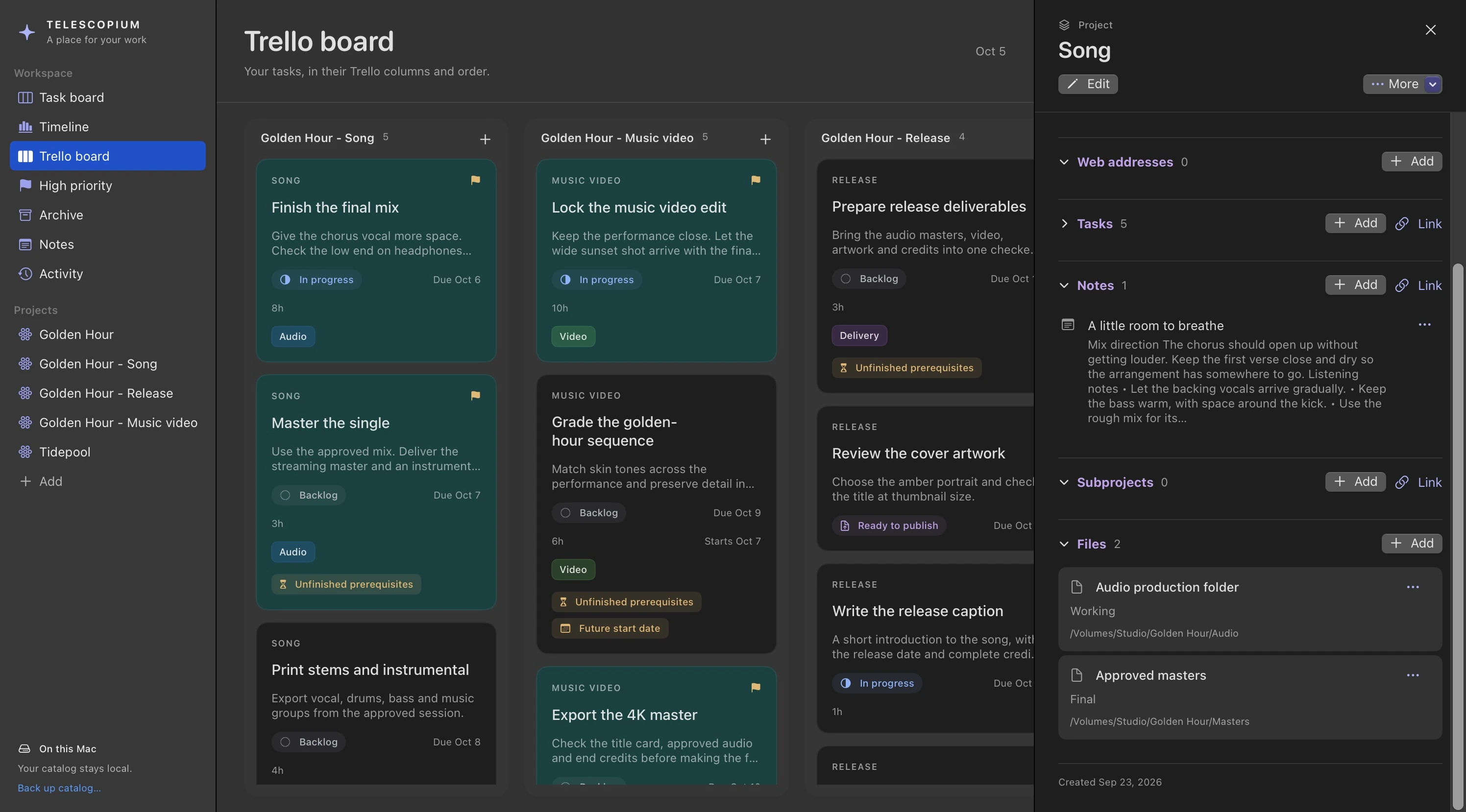
The main workspace provides the overview, while the right-hand details panel holds the selected record. This lets you inspect a task, open its note or follow a project connection with the surrounding board still visible.
- Project context is one click away. Clicking a mapped column header in Trello board, High priority or Archive opens its project details.
- Related records have a way back. Follow a note or another linked object through the details panel, then return with Back. Escape closes the panel when a menu or editor is not active.
- Frequent edits stay close to the task. Status and Priority are directly editable in the details panel. Sections for notes, files and other connections keep their Add and Link actions nearby.
- Cards make exceptions visible. High priority has a distinct teal fill and flag. Due dates sit near status, while unfinished prerequisites and future start dates appear when they affect a task.
- Focused views stay compact. High priority and Archive hide empty columns by default, with an Include empty columns checkbox when the wider structure is useful.
- Light and dark appearance. Telescopium follows your Mac’s setting, or you can choose Light or Dark.
Keep an existing Trello board in the workflow
For work planned in Trello, Telescopium maps connected columns to projects. A column named Golden Hour - Music video can map to the Music video subproject under Golden Hour. Deeper paths are supported, and established mappings retain their identity when a column is renamed.
The Trello board view follows the board’s column and card order. Open a task to see its full local context, click a column header to open the mapped project, or use the column’s Add button to create a task at that destination. Cards can be reordered within a column.
Two-way task synchronization covers titles, descriptions, start and due dates, workflow status, archive state, tags, URL web addresses, checklists and card order. Local file connections, priority and duration estimates remain local. Project web addresses also remain local.
Use Sync Now for synchronization with Trello; the app also checks on launch, when returning to the foreground and periodically while running. Workspace Refresh reloads the local catalog. Core project, note and file organization remains available without a Trello connection.
Availability
Telescopium is currently in QA, with a future release planned for Apple’s Mac App Store. The current build runs natively on Apple Silicon Macs with macOS 15 or later.