Home Views
The home screen is the first thing you see after opening a project. It shows all the work items in your project, with a sidebar of filters on the left. Three buttons in the top bar let you switch between three different ways of looking at the same content.
The three views
You toggle views with the Pipeline, Shot List, and Vibe Board buttons in the top bar. They all show the same project, just laid out differently. The sidebar filters apply to all three.

Pipeline board
The pipeline board is a kanban. Each column is a status, each card is a work item. The columns are:
- Asset Prep. No artifacts yet, or all the existing artifacts were rejected. This is where every new work item starts.
- Generating. A run is currently in flight for this item. You can see live progress on the card.
- Review. At least one new artifact is waiting for a verdict from you.
- Selected. At least one artifact has been accepted, and nothing is pending.
- Delivered. At least one artifact has been exported. This is the final state.
The status of each item is computed from the live state of its runs and artifacts. You never set a status by hand. It updates the moment you accept a take, finish a generation, or export a file.
All four work types appear on the board. Each type has a slightly different colored border on its cards so you can scan the columns and see at a glance whether you are looking at a shot, a character, or an outfit.
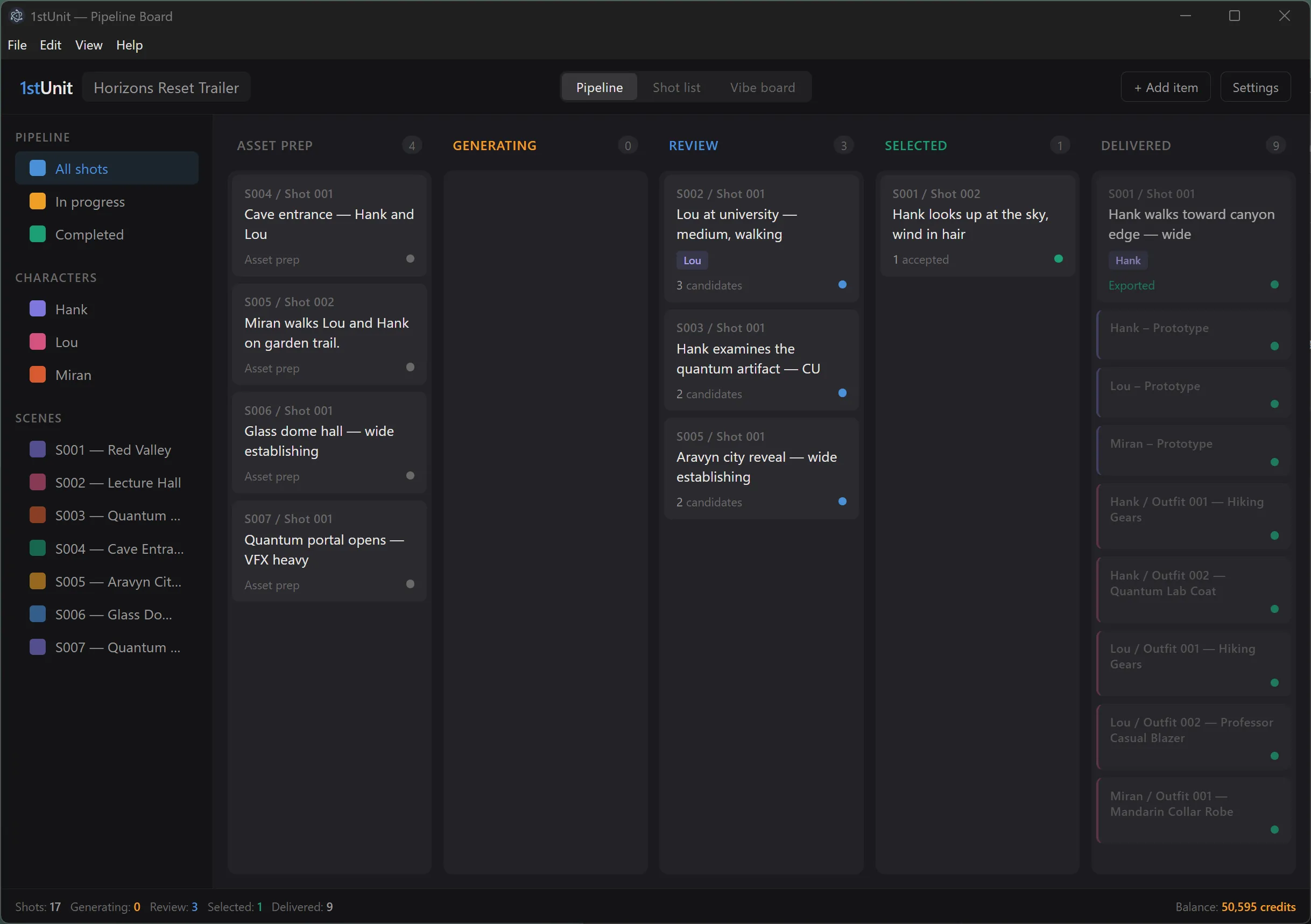
Clicking a card opens the shot workspace for that work item.
Shot List
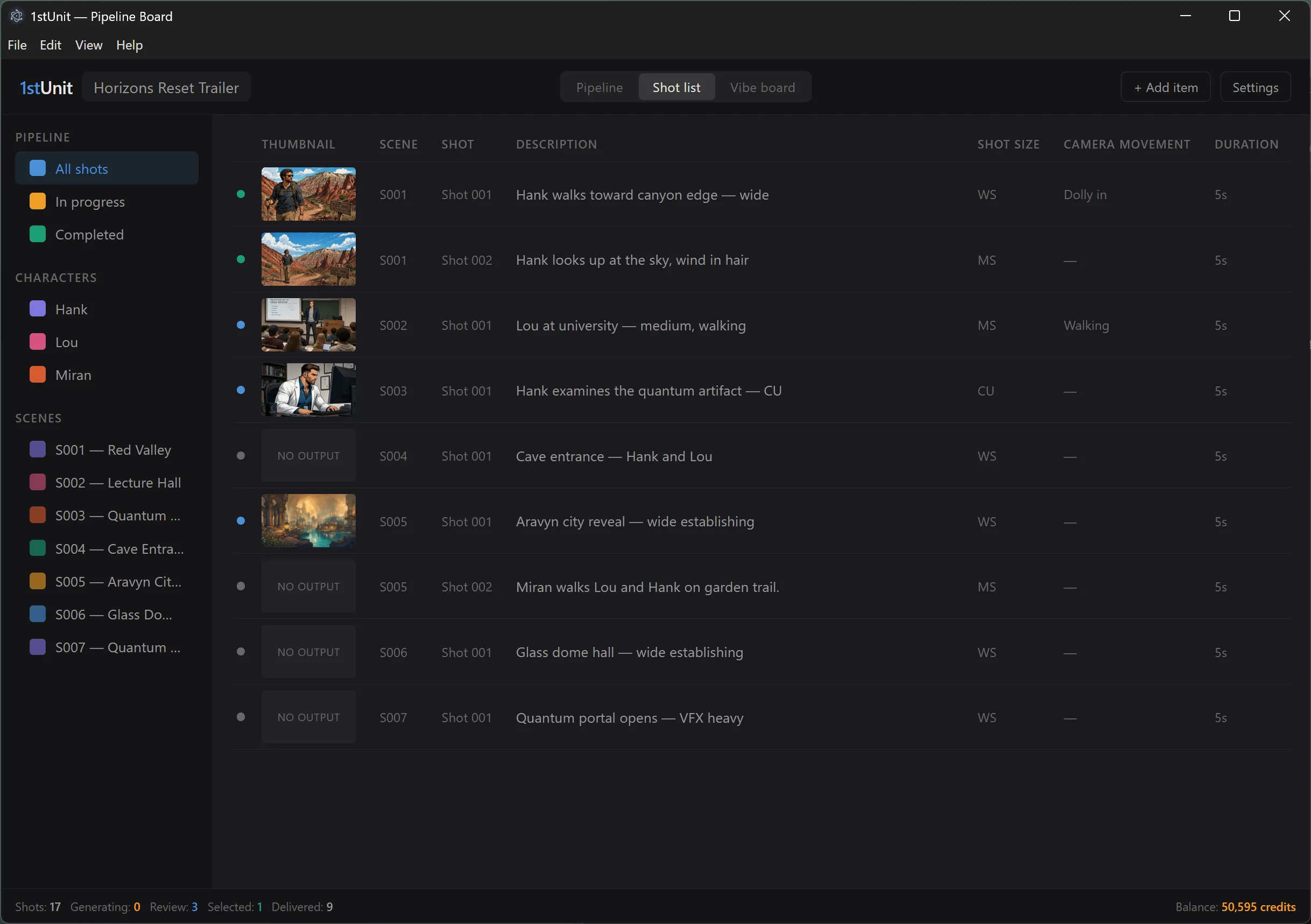
The Shot List view is a table. It only shows work items of type shot: scene prototypes, character prototypes, and outfits are hidden in this view. Each row has columns for:
- A status dot (colored to match the pipeline column)
- A thumbnail of the first accepted artifact, with arrows to cycle through the others
- Scene and shot numbers
- Description, shot size, camera movement, and duration
This view is useful when you are planning the production or doing a continuity pass. Everything is in sequence order, and you can scan all the metadata in one glance.
Vibe Board
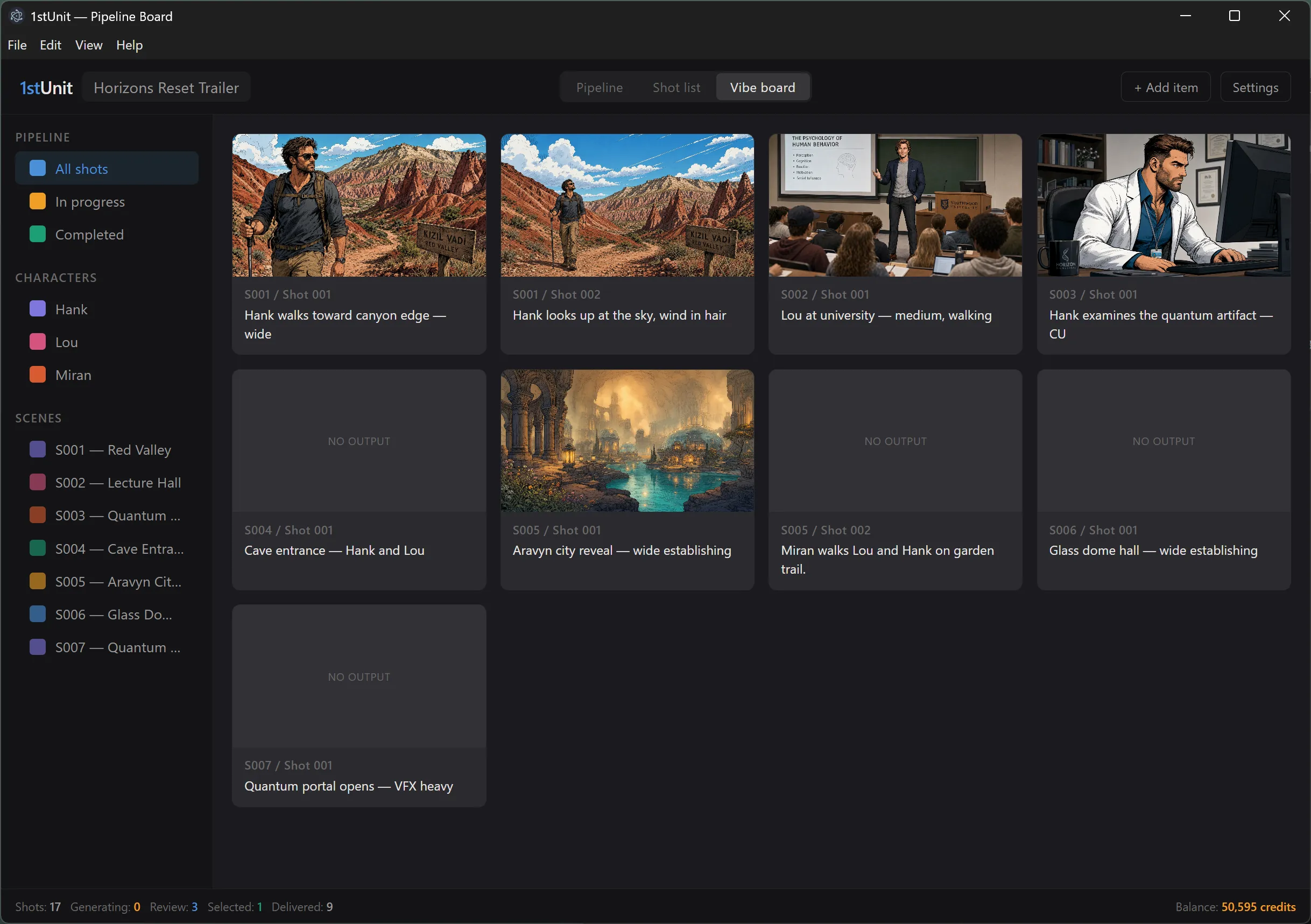
The Vibe Board is a large thumbnail grid of all your shots, in sequence order, with no metadata. It is for feeling the visual flow of your film: pacing, color palette, repeat motifs, anything that comes from seeing the shots next to each other.
Like the Shot List, the Vibe Board only shows shots, not characters or scene prototypes.
The sidebar filters
The sidebar on the left is the same in all three views. It is built from your project's content at load time, so its entries change as you work.
Characters
One entry per character prototype. Clicking a character filters the view to show only items associated with that character: the character's prototype, all its outfits, and any shots that have been generated with that character's artifacts as references.
Scenes
One entry per distinct scene number across all your shots. The label uses the scene prototype's display name if one exists, then falls back to the first shot's display name, then to a generic "S003" style label. Clicking a scene filters to all work items in that scene.
Status filters
Two convenience filters at the top of the sidebar:
- In progress. Shows everything in Asset Prep, Generating, or Review. The work that still needs attention.
- Completed. Shows everything in Selected or Delivered. The work you have signed off on.
The stats and balance row
Above the columns, the pipeline board shows a few headline numbers: total shots, items in progress, items completed, and your Runway credit balance. The balance is fetched live from Runway when you open the board, and is shown in amber so you can see at a glance how much budget you have left.
