Shot Workspace
The shot workspace is where you spend most of your time. It opens when you click any work item from the home views. Everything related to that one work item lives here: its generations, its takes, its lineage, and the buttons to start more runs.
The top bar
The top bar of the workspace shows the work item's title and a row of buttons. From left to right:
- Edit. Open the edit form for the work item.
- Delete. Only visible if the item has no runs and no artifacts. See Work items for the rule.
- Candidates, Node graph, and Prompt lab tabs.
- New Run button in the top right. Opens a clean-slate New Run form for this work item.
By default the workspace opens on the Candidates tab.
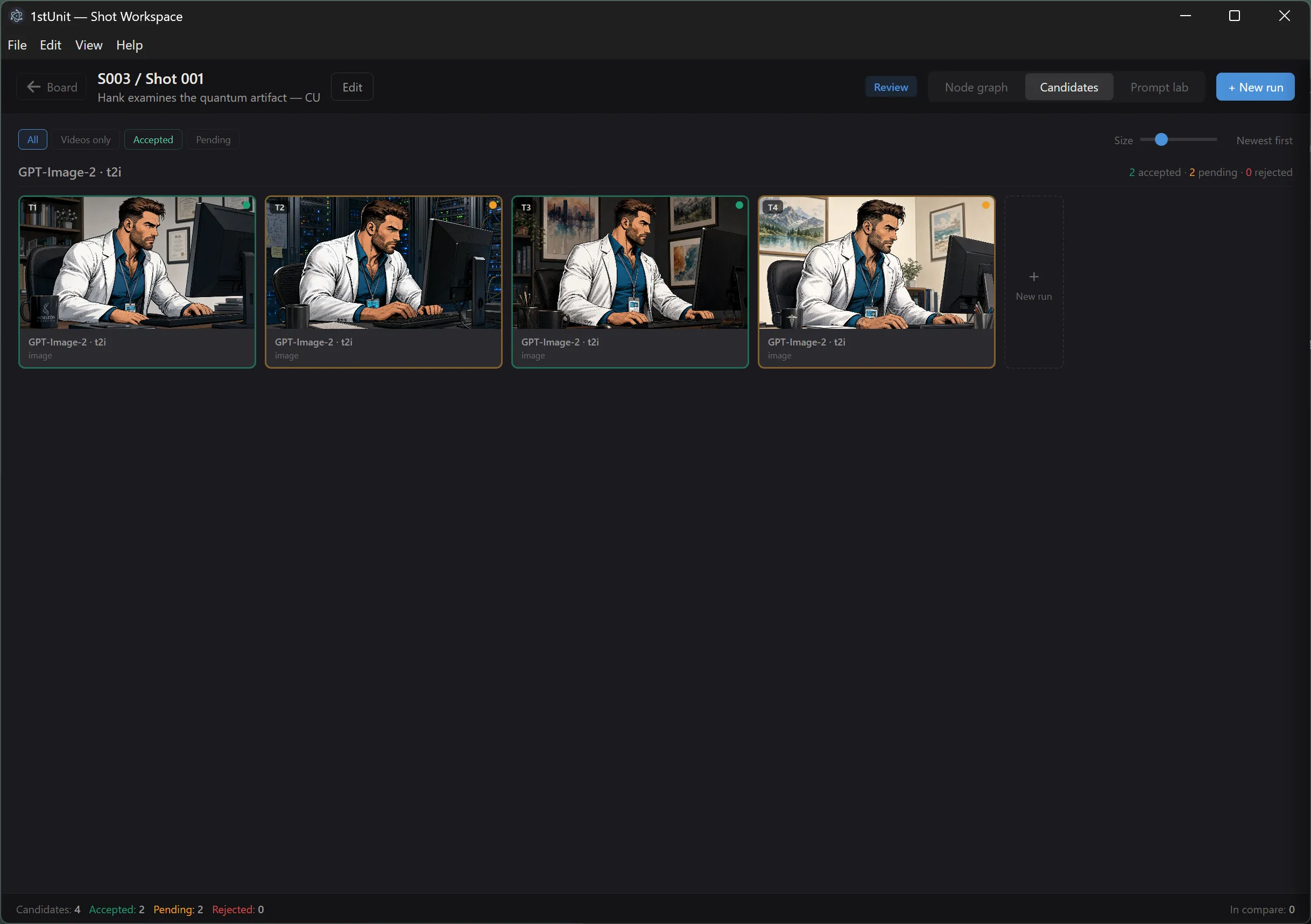
Candidates tab
The Candidates tab is the main review surface. Every artifact for this work item is shown as a card, grouped by lineage. A lineage is one creative direction: a particular combination of prompt, inputs, model, and mode. Variations of the same direction sit in the same lineage group. Switch any of those four things and you start a new lineage.
Each lineage group has:
- A header with the model name and mode (for example "Gen 4.5 · Image to video").
- One artifact card per take, including any take that is still generating.
- A small + New run card at the end. Clicking it pre-fills the New Run form with this lineage's prompt and inputs, ready to generate another variation in the same group.
Cards wrap onto multiple rows. There is no horizontal carousel and no hidden cards. Everything is visible at once. The vertical scroll bar is the only way to navigate.
A slider at the top of the Candidates tab adjusts card size. Drag it left or right to fit more or fewer cards across the row. Your preference is saved per app, not per project.
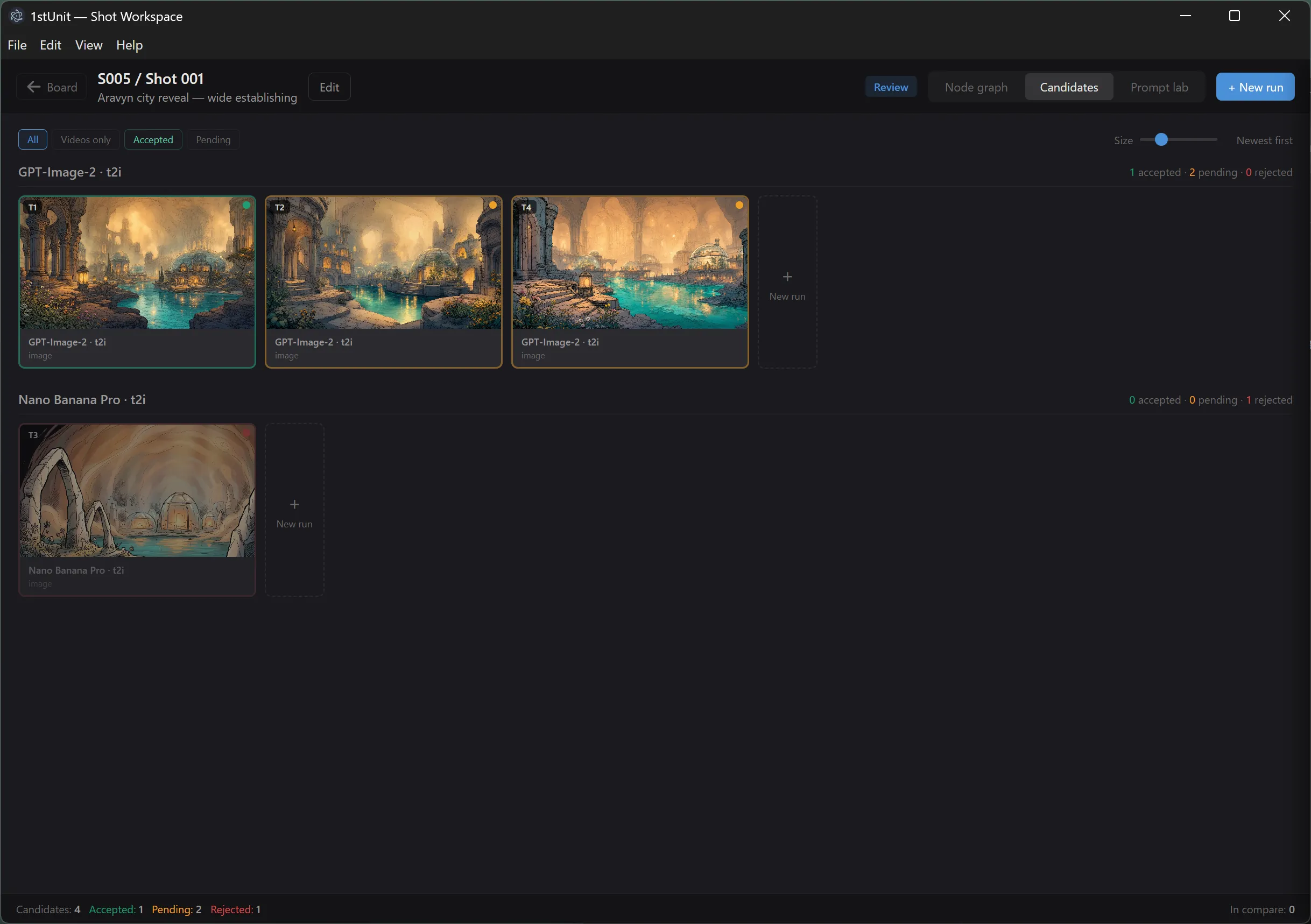
Verdict glyphs on cards
Each card has a small verdict indicator on it:
- Pending (no verdict yet). The default state right after generation.
- Accepted. You marked this take as good.
- Rejected. You marked this take as not usable.
- Exported. An accepted take that you also exported. Its file has been moved out of the Temp folder.
Click any card to open the detail panel on the right. The detail panel is where you actually change verdicts and run actions. See Reviewing candidates for the full flow.
Generating cards
While a run is in flight, its takes appear as placeholder cards with a spinner. They count down as the model works, then turn into real artifact cards the moment the run completes. If a run fails, no cards are produced. The failure is shown on the node graph instead, with the error message.
Node graph tab
The Node graph is a directed graph showing how every artifact for this work item was made. It is essentially a visual history. You will see:
- Input nodes for any reference image or video that was used.
- Run nodes for every generation, showing the first three lines of the prompt.
- Artifact nodes for every take that was produced.
Lines connect inputs to runs and runs to the takes they produced. Failed runs show with a red dotted border and the error message visible inside the node. Empty runs (no output artifacts but not failed) show with a plain dotted border so you have a record of the experiment.
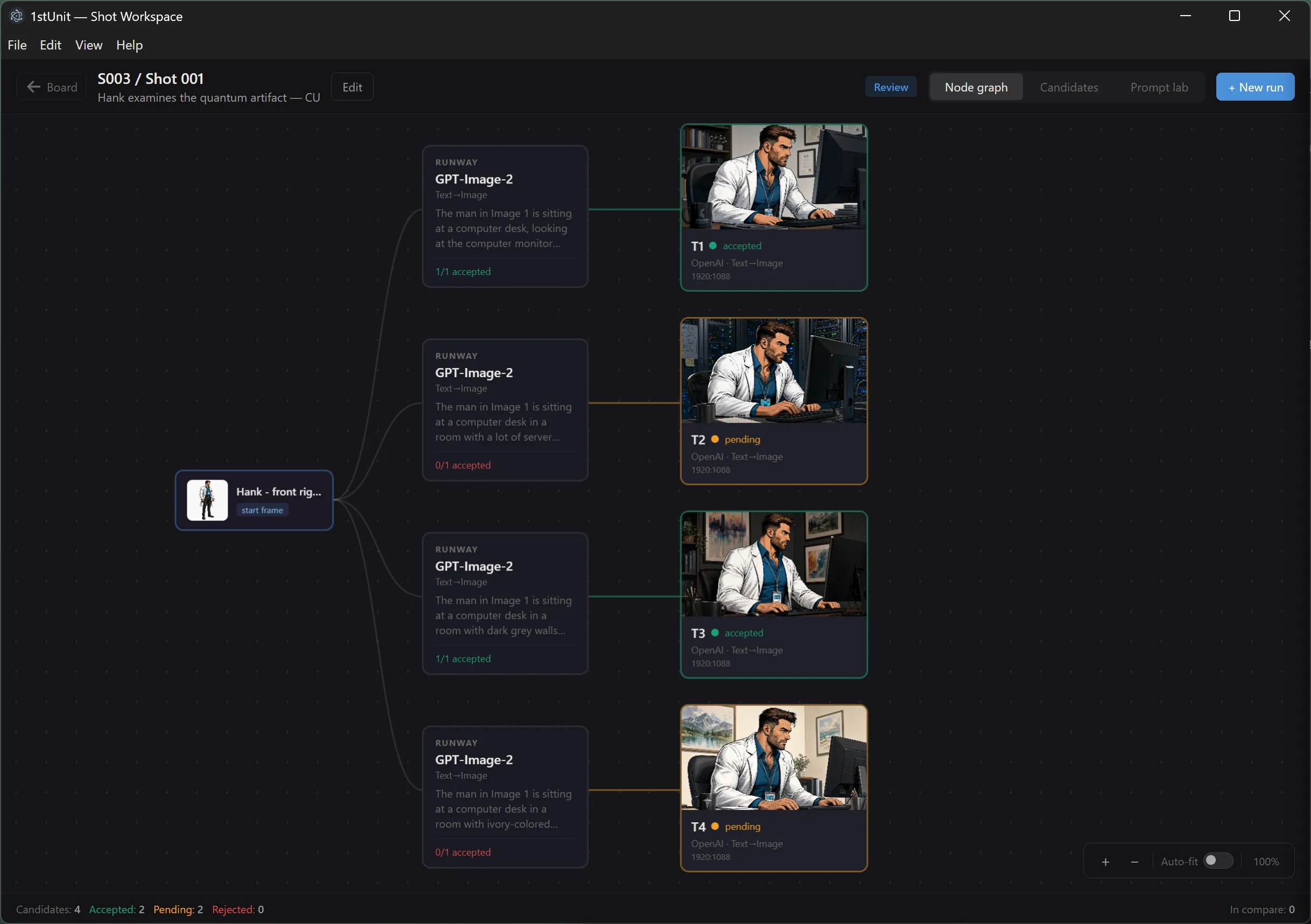
Pan, zoom, and auto-fit
Drag the background to pan. Use the scroll wheel or the zoom controls to zoom. The Auto-fit toggle, on by default, keeps everything centered and scaled to fit the view as you add more runs. Turn it off if you want to pan around a large graph without it snapping back.
Clicking nodes
Click an artifact node to open the artifact detail panel, the same one used on the Candidates tab. Click a run node to see its prompt and settings. Click anywhere on the empty background to close the panel. (Background drag does not close it, so panning never dismisses your work.)
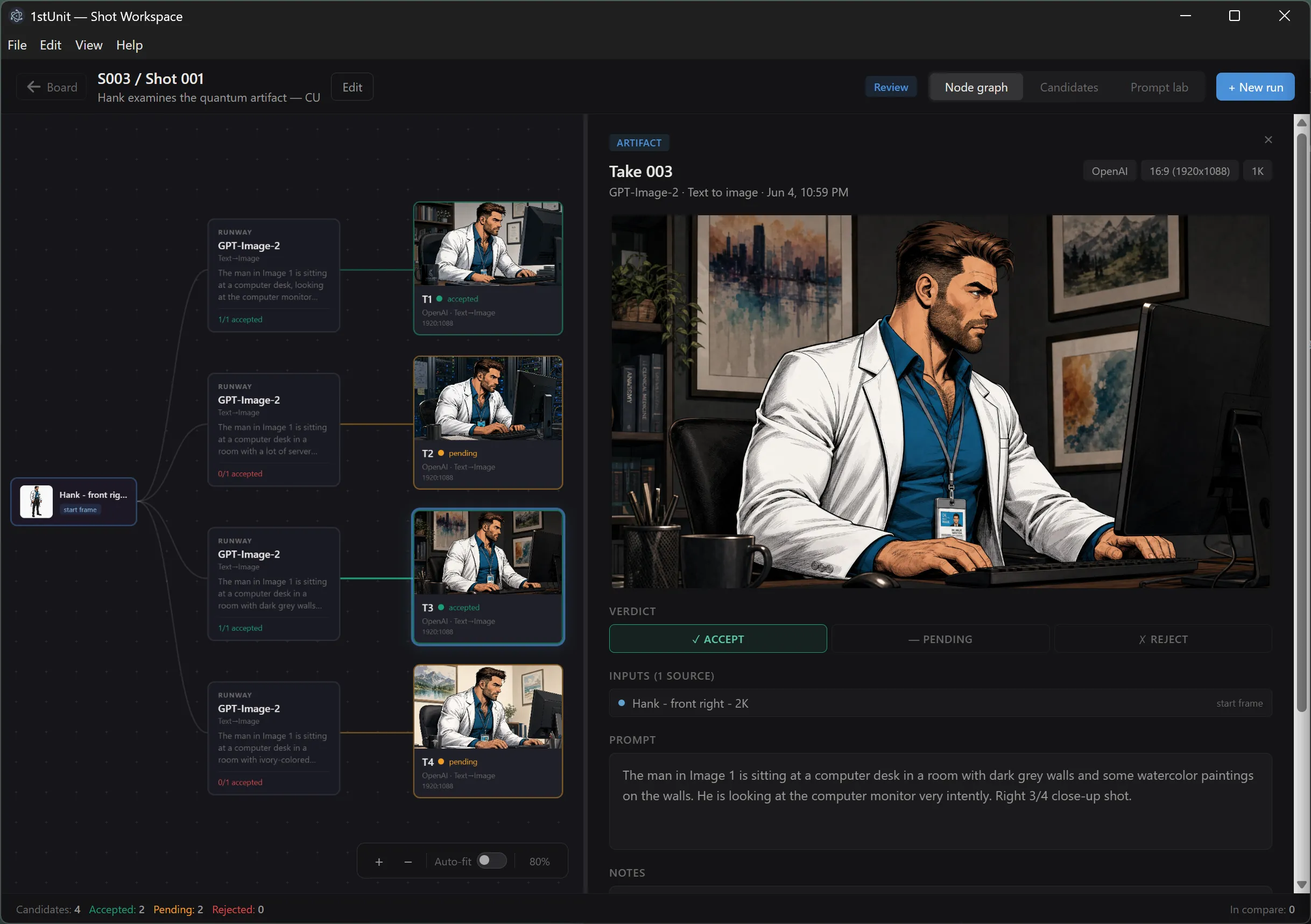
The artifact detail panel
This is the same panel whether you open it from Candidates or from the Node graph. It is laid out top to bottom as:
- Header. An ARTIFACT badge, a close button, the take number as a title, and a subtitle that reads "Model · Mode · Date" (for example "GPT-Image-2 · Text to image · Jun 4, 7:22 PM"). A row of tags on the right shows the provider, aspect ratio, and resolution or duration.
- Preview. The image or video itself. Click an image to open it in a full-screen lightbox. Videos play inline with native controls, and the player's own maximize button gives you full screen.
- Verdict bar. Three buttons for Accept, Pending, and Reject.
- Inputs. Only shown if the run used input references. Each row is clickable and opens the source artifact in the lightbox so you can see what was fed in.
- Prompt. The exact prompt text used for this run.
- Notes. A free-form text field for your own notes about this take. Saves automatically when you click away or close the panel.
- File path. The full path to the file on disk, for when you need to find it in your file explorer.
- Action bar. Regenerate, Export, and Delete. Plus an Add to compare set button on the Candidates tab.
The Candidates tab also has a compare set dock that lets you collect several artifacts and view them side by side. Click Add to compare set on the panel to add the current artifact, then open the compare dock at the bottom of the screen.
Imported artifacts
Artifacts that you imported from outside the project look slightly different in the panel: the Regenerate, Export, Delete, and Compare buttons are hidden. Imported items are considered already accepted and exported, so most of the actions do not apply.
Resizing the detail panel
Drag the left edge of the detail panel to resize it. Your width preference is saved between sessions.
Prompt lab tab
The Prompt lab tab is reserved for a future prompt-iteration feature. It is currently a placeholder.