Work Items
Everything you generate in 1stUnit belongs to a work item. A work item is one piece of the production: a shot in a scene, a base design for a character, a costume variant, or a concept image for an entire scene. Each work item has its own card on the pipeline board, its own folder on disk, and its own status that tracks where it is in your workflow.
There are four kinds of work items, called work types. Picking the right type matters because each one has its own card label, its own folder location, and shows up in the sidebar in a different way.
The four work types
| Type | What it represents | Card title | Folder location |
|---|---|---|---|
| Shot | A single shot in a scene. The thing that ends up in your edit. | S001 / Shot 001 | Scenes/Scene 001/Shot 001/ |
| Scene prototype | A concept or reference image for an entire scene. Optional but useful for setting a look. | S001 / Prototype | Scenes/Scene 001/Prototype/ |
| Character prototype | The base design of a character. Generated once, then reused as a reference for that character. | Hank / Prototype | Characters/Hank/Prototype/ |
| Outfit | A costume variant for a character. One character can have many outfits. | Hank / Outfit 001 — Hiking Gears | Characters/Hank/Outfit 001/ |
The folder name uses only the type and number. Display labels like "Hiking Gears" appear on the card and in the sidebar, but never in the folder path. This means you can rename labels later without breaking any file references.
Adding a work item
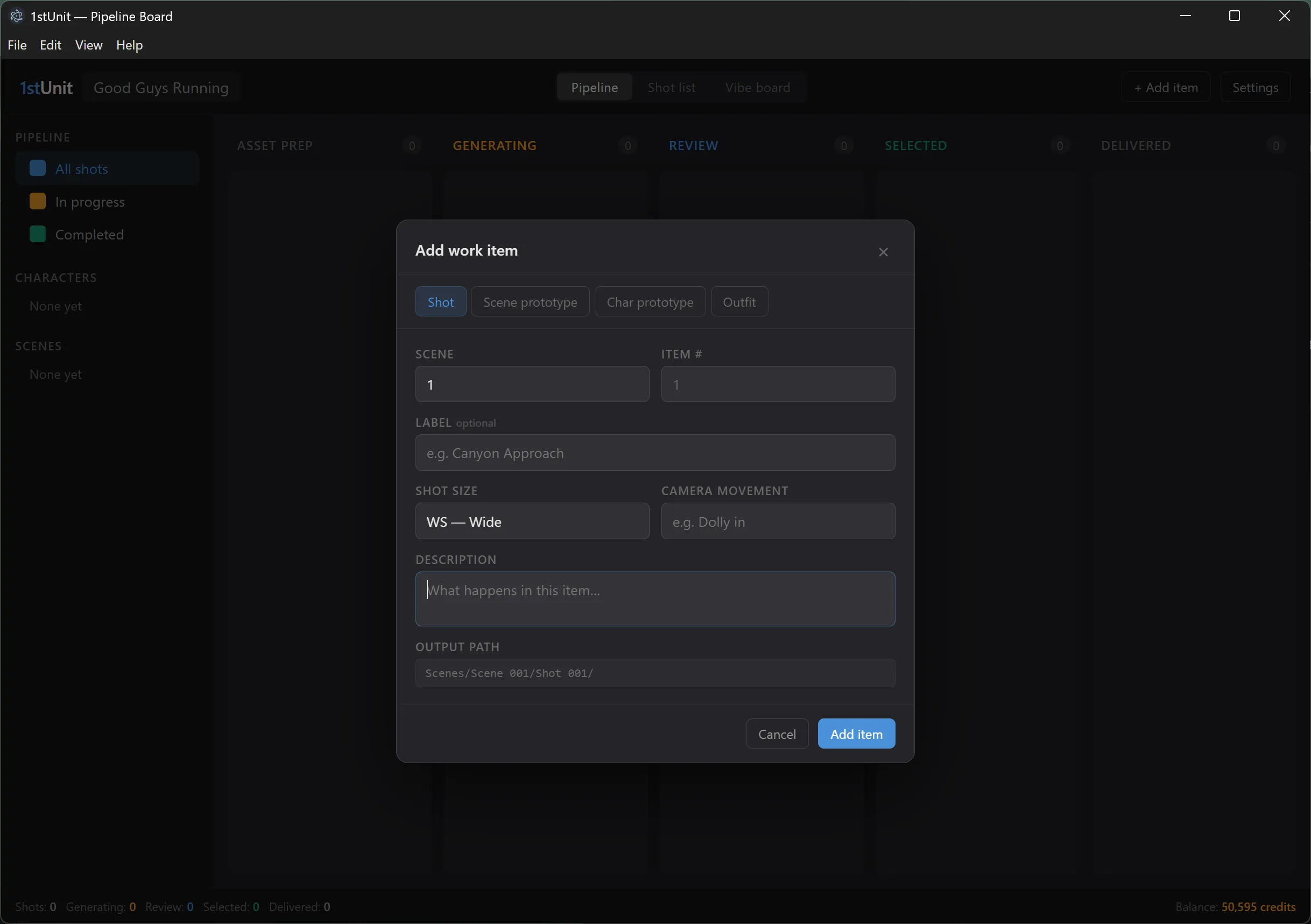
Click Add work item in the top bar of the pipeline board. A modal opens. Pick a work type. The fields adapt to the type you chose:
- Shot. Scene number, shot number, description, shot size, camera angle, camera movement, duration.
- Scene prototype. Scene number, item number, an optional display label.
- Character prototype. Character name, item number.
- Outfit. Character name, outfit number, an optional display label.
Save the form. The card appears in the Asset Prep column. From there, click into it to open the shot workspace and start generating.
Editing a work item
Open the work item, then click Edit in the top bar of the shot workspace. You can change the description, the display label, the shot size, the duration, and the camera movement. You cannot change the work type or the numbering: those define where the item lives in the folder structure.
Deleting a work item
The Delete button only appears when a work item has no runs and no artifacts attached. Once any content exists, the item is permanent. This is to protect the lineage of every artifact you produced from it: deleting the work item later would orphan results that may still be referenced by other shots.
If you want to retire a shot that has runs, leave it in place. Rejected and exported takes can sit on it indefinitely without affecting anything else.
How work types relate to each other
Work types are not just labels. They determine how 1stUnit groups items in the sidebar and how it handles their references:
- Scenes are derived from the scene numbers on your shots. You do not need a scene prototype for a scene to appear in the sidebar. The sidebar simply lists every distinct scene number across your shots.
- Characters are derived from the character names on character prototypes. A character appears in the sidebar as soon as you create its prototype.
- Outfits belong to a character through the character name field. They show up under that character in the sidebar.
- Shots belong to a character when their generation referenced that character's artifacts. A shot that has never been generated will not appear under any character filter yet. It will start showing up once you do a run that uses a character or outfit artifact as input.
Importing existing work
If you already have reference images or footage you want to bring in, you can attach them to a character prototype or outfit directly. Open the work item and use the import option to pick files from disk. Imported artifacts are treated as already accepted and exported, so the work item lands straight in the Delivered column. The Reviewing candidates page explains the verdict and export flow in more detail.