Projects
A project is one piece of work: a short film, a commercial, a music video, or any other set of shots you want to plan and generate together. Each project has its own database of shots, characters, runs, and artifacts. Switching projects is how you keep different productions cleanly separated.
The File menu
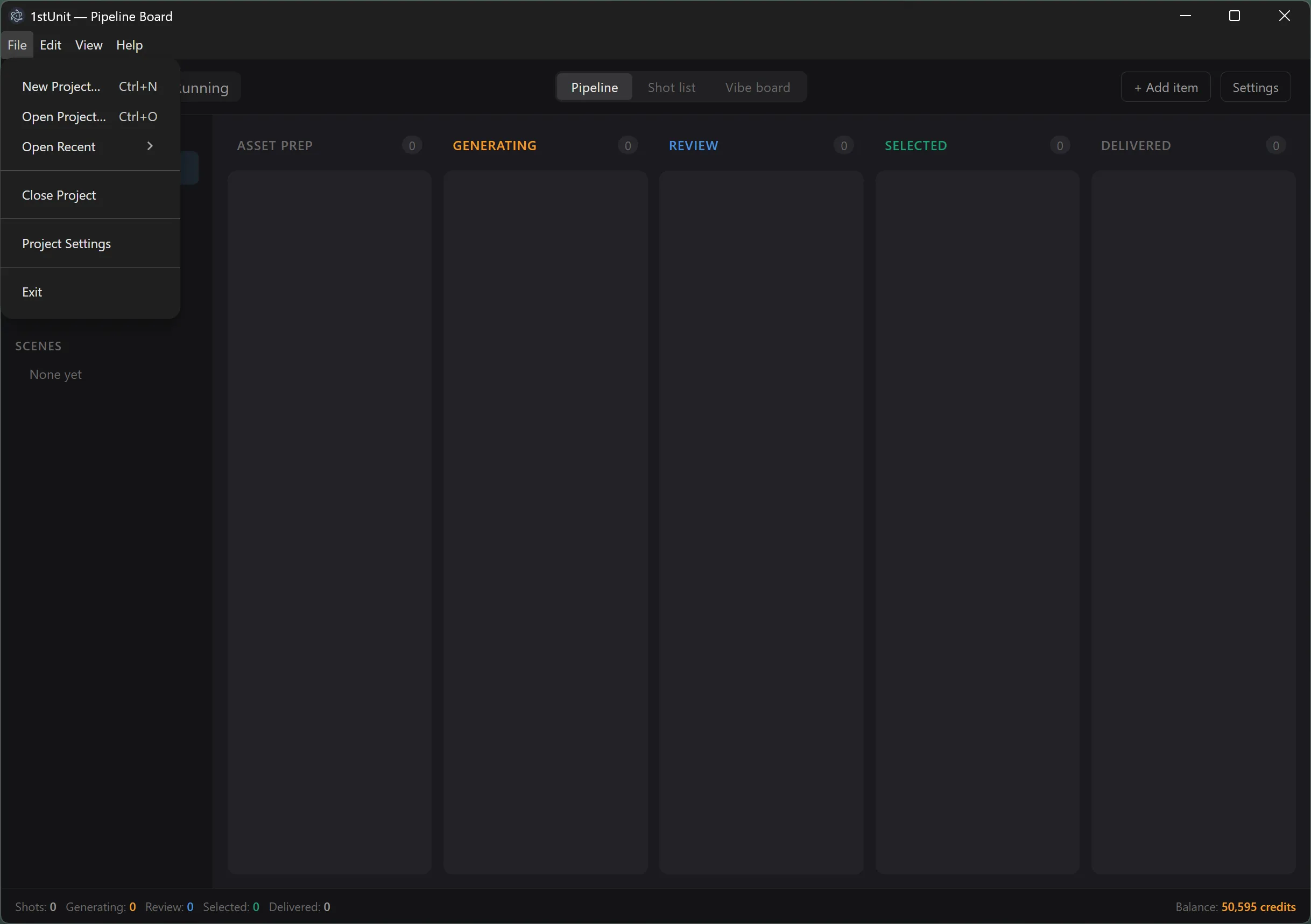
All project management lives on the File menu in the menu bar:
- New Project. Opens a form to name the project and pick its output root folder.
- Open Project. Lets you browse to an existing project database file and open it.
- Open Recent. Lists the last five projects you opened, in order of most recent. One click reopens any of them.
- Close Project. Closes the current project and brings up the Open Project modal again.
- Project Settings. Opens the settings form for the project that is currently open.
The Open Project modal
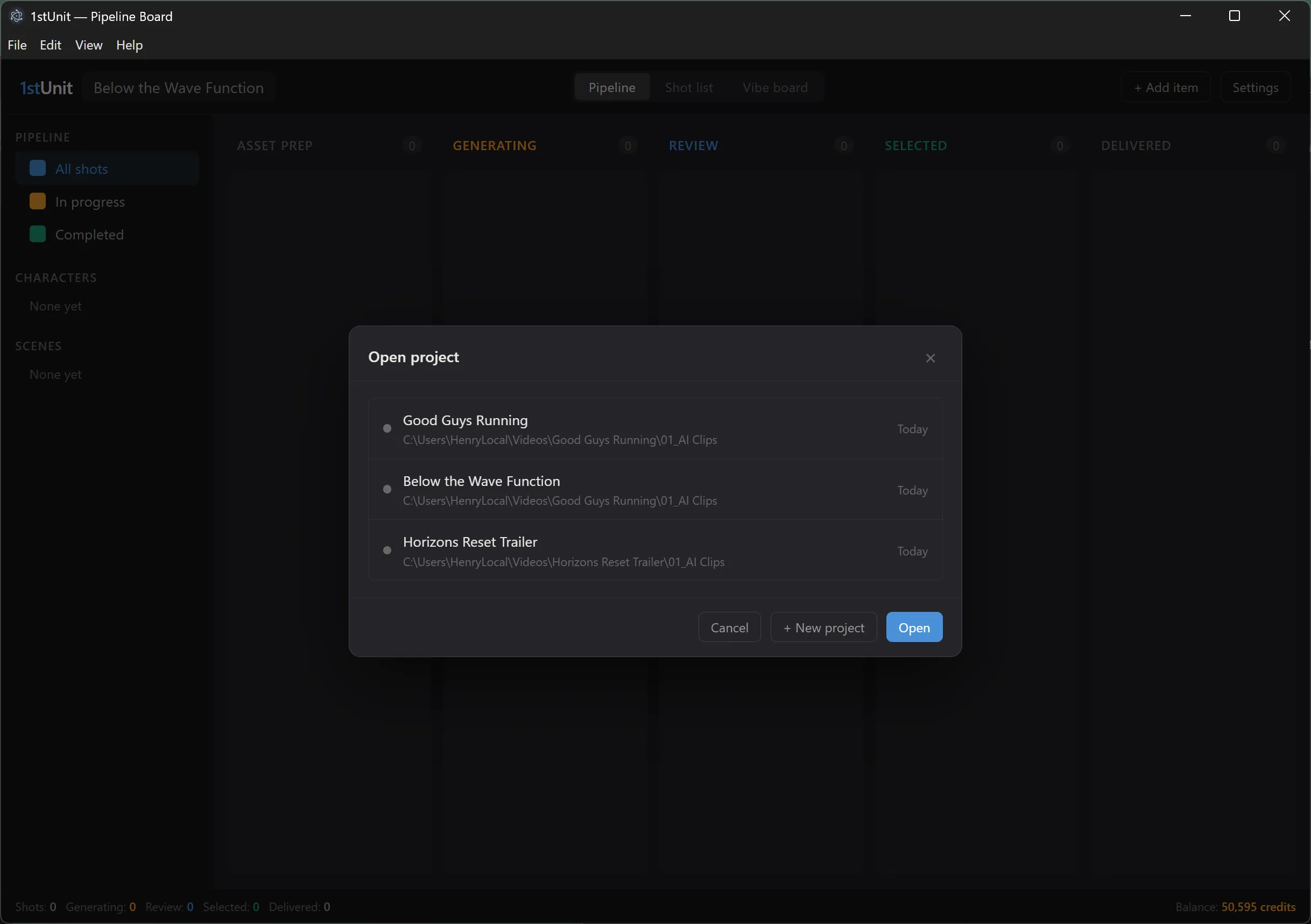
Every time you launch 1stUnit, and every time you close a project, the app shows the Open Project modal. It never auto-opens the last project. This is intentional. It gives you a chance to switch contexts before any data loads.
The modal has buttons to create a new project, open one from a file, or pick from the recent list.
Project Settings
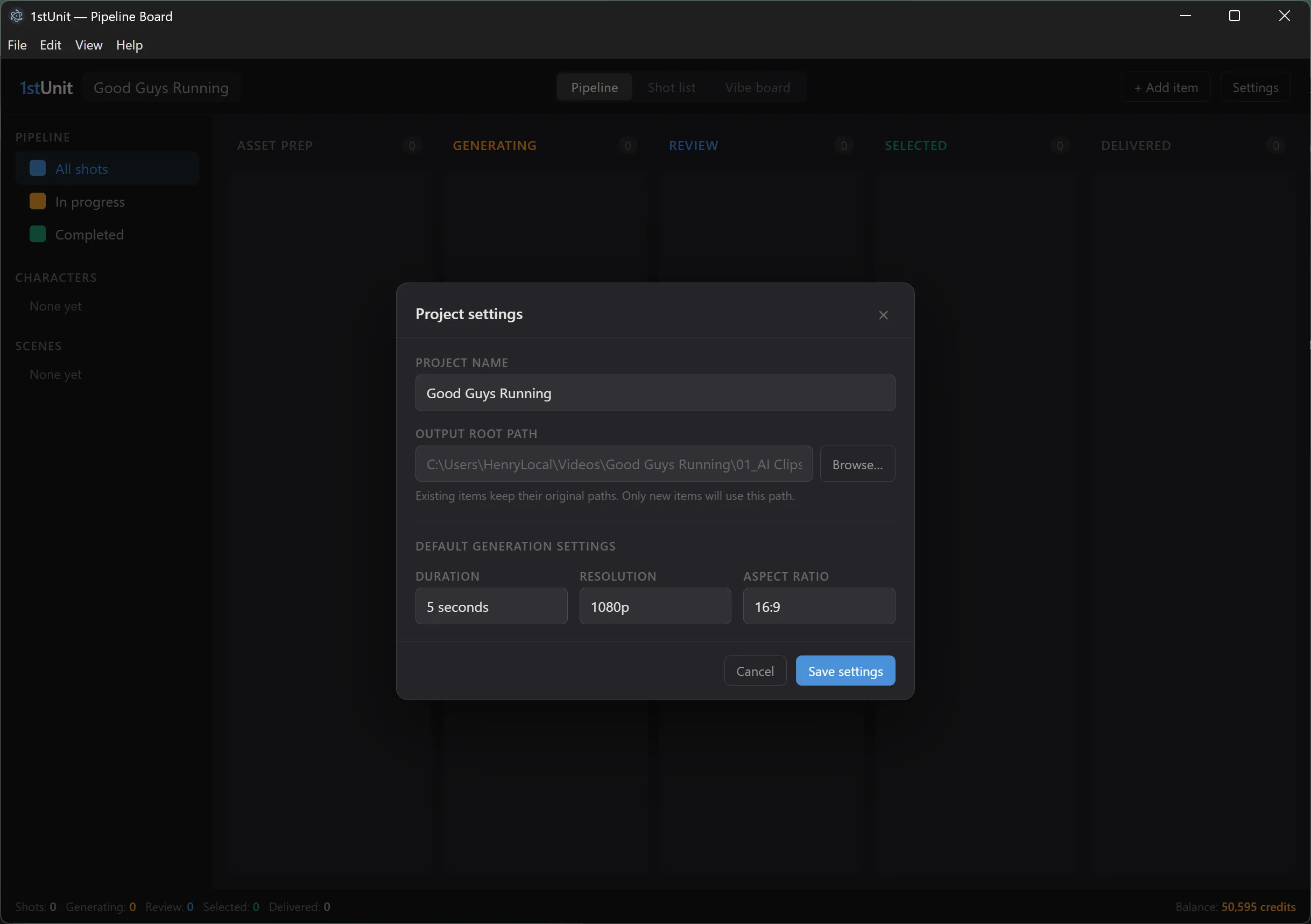
Project Settings are specific to the project that is open. They cover:
- Project name. Rename the project at any time. The new name shows in the title bar and on the recent list.
- Output root folder. Where the project's files live. Changing this affects only new work items going forward. Existing work items keep their original folder paths so nothing breaks.
- Default generation settings. Defaults that pre-fill the New Run form when you start a new run.
You can open Project Settings either from the File menu or from the gear icon in the top bar of the pipeline board.
Preferences vs Project Settings
1stUnit keeps two separate settings areas, and the distinction matters:
- Preferences (Edit menu) are app-wide. The Runway API key lives here. Whatever project you have open, the same key is used.
- Project Settings (File menu) are per project. The name, output folder, and default generation settings only apply to the project that is open.
Where your files live
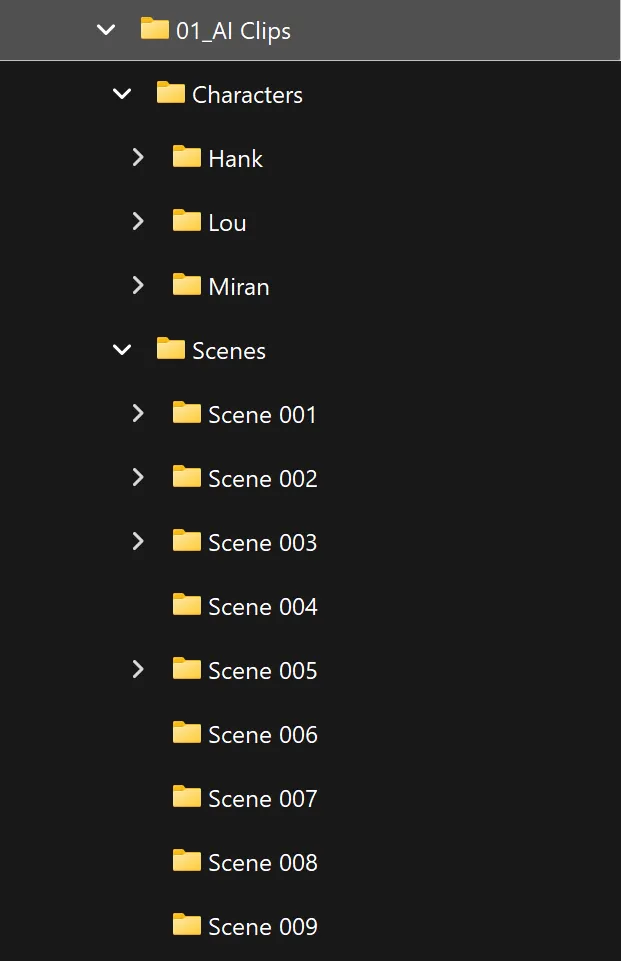
Each project has its own folder tree inside its output root. Folders are named by type and number, never by your custom labels, so paths stay stable even if you rename a scene or a character later. Here is what a typical project tree looks like:
Everything 1stUnit knows about your project is also stored in a single database file at %APPDATA%\1stUnit\1stunit.db on your PC. The files inside your output root are the actual generated images and videos. The database tracks what was generated, when, with which prompt and inputs, and what verdict you gave each take.
Window position
1stUnit remembers the size and position of its window between launches. If you maximize it, it stays maximized next time. If you move it to a second monitor, it reopens there. The one exception is when the saved position lands entirely off the visible desktop, for example after a monitor is unplugged. In that case, the app will fall back to a sensible default size so the window will not get stranded.