Reviewing Candidates
Every time a run completes, it produces one or more candidate artifacts. Reviewing them is the second half of the production loop. This page covers the four verdict states, how to export a take, and what happens to the files on disk at each step.
The four states of an artifact
| State | What it means | File location |
|---|---|---|
| Pending | Just generated. You have not yet decided. | Inside the work item's Temp folder. |
| Rejected | Not usable. Kept on disk for reference but ignored by the pipeline. | Still in Temp. |
| Accepted | Good. A candidate worth using. You can still pick others later. | Still in Temp. |
| Exported | Promoted to the final file location. This is the take that goes into your edit. | In the work item's main folder, next to its Temp folder. |
The state of an artifact drives the status of its work item. Once at least one artifact is accepted and nothing is pending, the work item shows in the Selected column. Once one is exported, the work item shows in Delivered. See Home views for the full set of column rules.
Setting a verdict
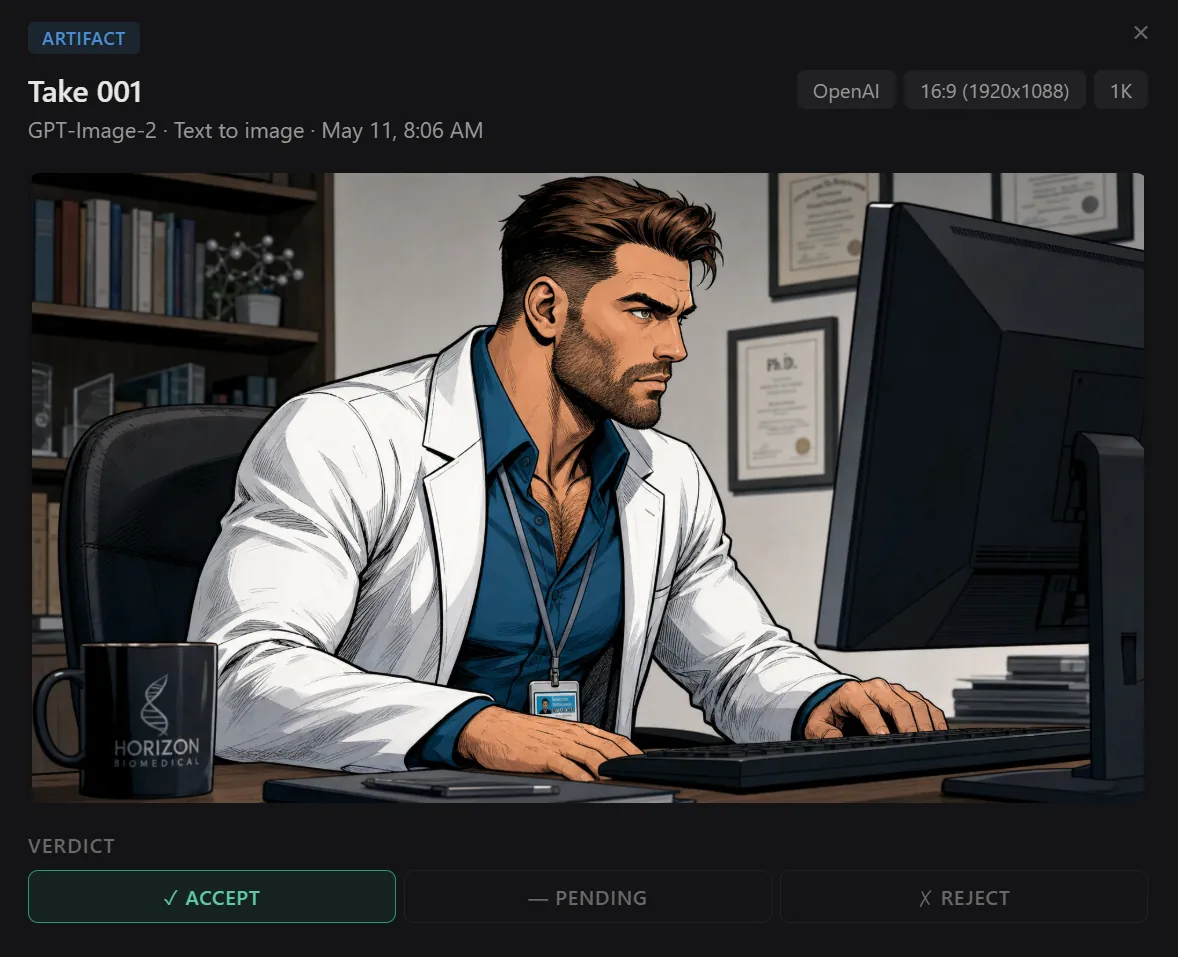
Click an artifact card on the Candidates tab (or a node on the Node graph) to open the detail panel. The verdict bar has three buttons:
- Accept. Marks the take as good.
- Pending. Resets the take back to undecided.
- Reject. Marks the take as not usable.
The change is instant. The work item's status recalculates immediately, and if the change moves it to a new column, you will see it move on the pipeline board the next time you go back.
Exporting a take
The Export button only appears when an artifact is accepted. Click it. A rename dialog opens with a suggested filename. You can edit the name before confirming.
What Export actually does:
- Moves the file out of the Temp folder, into the work item's main folder.
- Renames the file to whatever you confirmed in the dialog.
- Marks the artifact as the work item's selected (exported) take.
- Moves the work item to the Delivered column.
You can export multiple takes from the same work item if you want more than one final version, but only one at a time gets the "promoted to main folder" treatment. The others keep their files in Temp even after they are exported.
Why move the file? Because your video editor (the NLE you cut in) will reference the file by its path. Once a file is in the main folder with a stable name, you can drop it into your timeline knowing it will not get cleaned up by accident.
Demoting an exported take
You might change your mind. To pull an exported take back to accepted or pending, open its detail panel and change the verdict.
1stUnit will warn you first. Demoting an exported artifact moves its file back to Temp, which means any NLE timeline that linked to the original location will lose the reference. If you really want to demote, confirm the warning. If you want to be safe, leave it exported and just export another take alongside it.
Deleting an artifact
The Delete button removes the artifact from the project and deletes its file from disk. There is no cloud backup. Pending and rejected artifacts can be deleted with a simple confirmation. Exported artifacts cannot be deleted directly: you must demote them first.
Regenerating a take
Regenerate, in the artifact detail panel, opens the New Run form pre-filled with the same prompt, inputs, model, mode, and config that produced this artifact. It is the fastest way to make another variation in the same lineage. If you launch without changing anything, the new take lands in the same lineage group as the original.
For more on the New Run form and how lineages work, see Creating a new run.
Comparing takes side by side
On the Candidates tab, the artifact detail panel has an Add to compare set button below the action bar. Click it on two or more artifacts to collect them in the compare dock at the bottom of the screen. Open the dock and you see your picks laid out together at large size. Useful for picking between near-identical takes.

Notes on an artifact
The detail panel has a Notes field. Type whatever you want: a comment about a hand position, a reminder to retry with a different camera angle, a note to your editor about timing. Notes save automatically when you click away from the field or close the panel.
Notes are for you. They do not affect the run, the prompt, or any future generation. If you want to fork a new lineage from your notes, copy the relevant detail into the prompt of a new run yourself.
The lightbox preview
Click an image artifact's preview to open it full-screen in a lightbox. Click outside it, press Escape, or click the X to close. Reference input thumbnails in the detail panel also open in the lightbox when clicked, so you can see exactly what was fed into the run.
Videos do not need the lightbox: their inline player has a maximize button that takes them to full screen with native controls.